
Story: Setting up and sharing Google App Scripts for a hobby project
In this article, I’ll share my experience setting up a custom bead pattern editor in Google Sheets – from ideation to implementation.
I’m also sharing the template and the script code – see them on my GitHub page.
My crafting journey – weaving with wax cord, threads and beads
I enjoy “practical pixel art” – creating small pixel art patterns and implementing them in a physical medium. First, it was creating pictures with wax cord weaving. With this technique, the dimensions of each “dot” aren’t 1:1, but closer to 4:5. To account for this pattern cells need to be shaped accordingly, and not many pixel art editors allow to change the cell shape.
Fortunately, I found an amazing free online editor, CraftDesignOnline – it allows to set the grid dimensions, and has pattern editors for Kumihimo braids, embroidery, and other crafts.
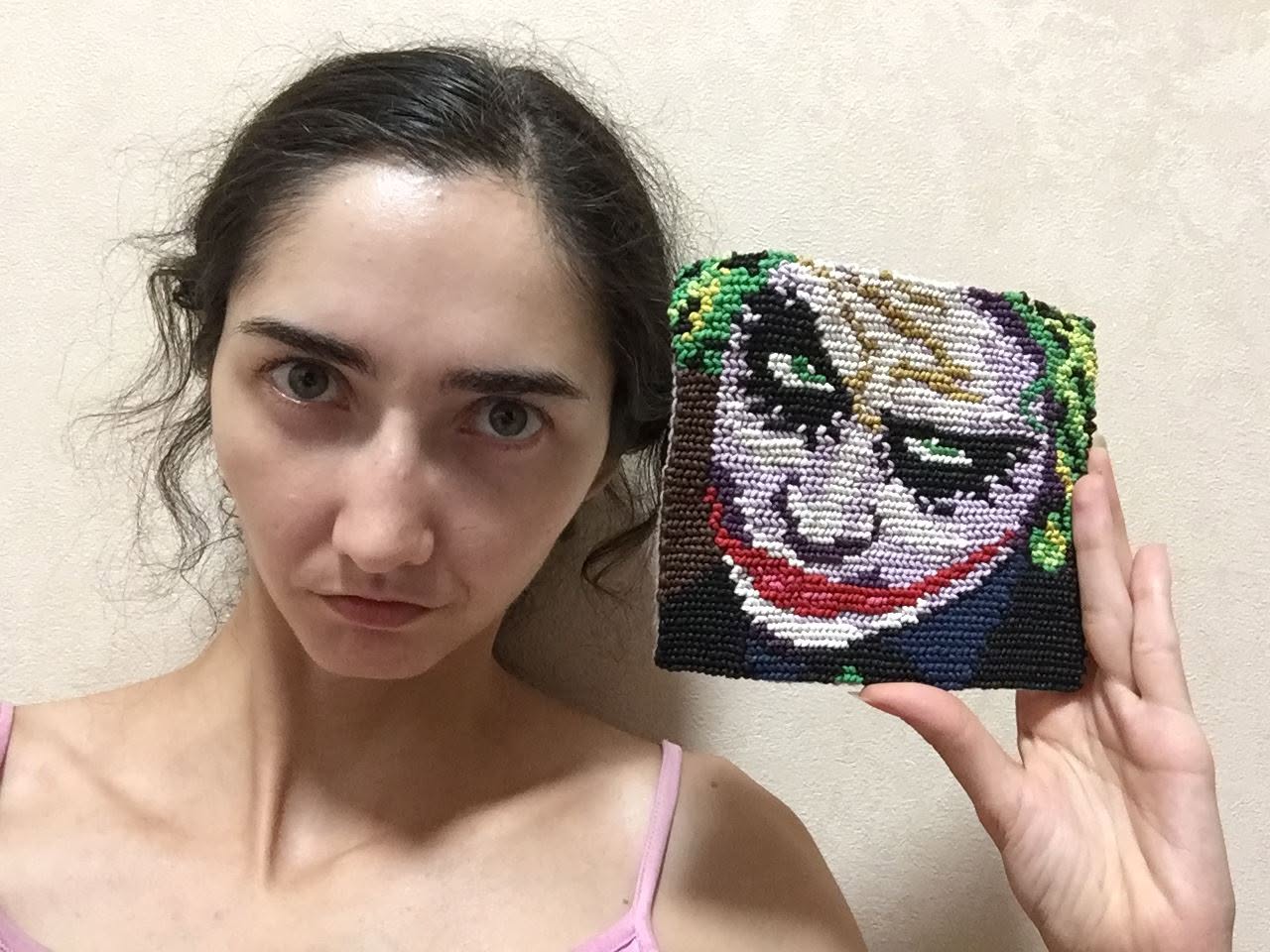
Joker pixel pattern I made in CraftDesignOnline editor based on a pixel art image found on the web
After a long pause in weaving, I took a liking to loom weaving with seed beads – specifically, weaving collars. I prefer rocaille beads, and their dimensions also happen to be 4:5. I went back to the editor and started drawing.
I had thoughts about eventually sharing or selling patterns, so in the back of my mind, there were already some concerns about exporting and scalability. It was possible to export as an HTML table, but every file would require manual processing to be turned into a custom document. And while the raw files could be saved, they were in a format that only this particular editor could read, so if something were to happen to the editor, all the originals would be lost… But I was more inspired to just make art for the moment and think about the technicalities later.
And just as I created a few patterns, the website went offline.
Apparently, it happened for the first time in years, or at least there was no other announcement on their socials. CraftDesignOnline is a hobby project, and its creators were kind enough to keep it online for over a decade, and they did bring it back after being hit hard by AI bot scrapers.
However, this incident was a harsh – and quite timely – reminder to take my concerns seriously. But what were the options? Other editors, both free and paid, weren’t as convenient, and ultimately had similar limitations. Also, I didn’t want to pay for a tool that I would use only once in a while for a hobby.
After looking into alternatives, I decided to set up a custom editor in Google Sheets.
Pros and cons of a custom bead pattern editor in a spreadsheet
Admittedly, “drawing” in a spreadsheet is very basic. Even making a diagonal line or filling an area isn’t straightforward, not to mention something like overlaying a transparent image to draw over it.
However, with a bit of practice using CTRL+Select, drawing lines and filling areas gets easier, so the time spent on a pattern depends on your inspiration and vision – if the vision of the final image is clear, laying it out won’t be much slower than in regular editors.
Another limitation is that you could only draw straight-grid patterns, no peyote stitching. But it works well for collars, bracelets, belts and so on.
For most hobby creators who would like to create a pattern for their own reference, using a dedicated bead pattern editor usually makes more sense. But a custom editor also has a few things going for it.
Advantages of a custom editor
Reusing parts of the pattern. If you want to place the same small element in multiple areas of the pattern, copy elements between patterns, or save a version for further reference – it’s very easy to copy and paste in Sheets.
Easy to export and use in different formats. Saved with the .xlsx extension, the file will preserve formatting. With scripts, you could use this data to generate PDFs with color patterns, simple letter charts, color group lists, and so on.
Version control. Easy to undo steps and jump back to previous versions.
Ownership. This method is still based on proprietary software (not open source) , but the chance of Google shutting down any time soon is low, so you won’t have to worry about losing access to your data or sudden pricing changes.
Setting up a custom craft pattern editor in Google Sheets
Of course, the most useful features wouldn’t come out of the box. For the functionality I needed, starting with the basic things like creating the 5*5 grid lines and enumerating rows, one would need to use custom App scripts.
That’s where the back-end experience came in handy. Working with workflow setup and automation, I almost never did coding per se, I had to tweak and debug code snippets in different languages, and was at ease with the coding logic overall.
Google App Scripts use JavaScript, so the first task was to write the core functions in JS, given that the Pattern tab and Palette (metadata tab) will be separate:
- Calculate beads per color
- Write a letter on each color in the pattern
- Swap one color for another
I did a few Google search queries explaining these functions, took the code snippets right from the Google AI overview, and modified them to work with my setup.
It wasn’t perfect – to calculate beads per color or swap a color, a function still had to be run manually for each color. But once again, I was eager to make art, and the solution was “good enough”, so I drew around ten patterns with this setup.
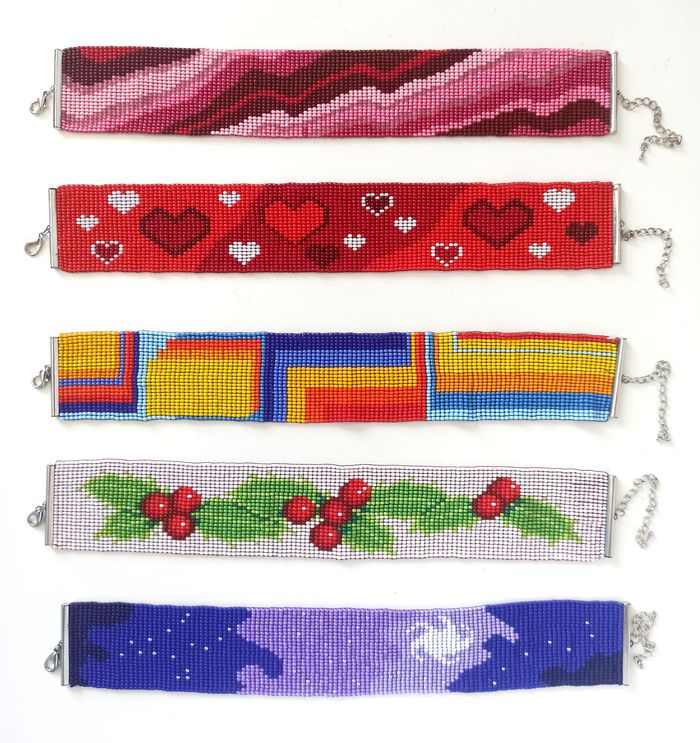
Rocaille bead collars, loom weaved from patterns created in the custom editor
Streamlining functions, automation and script sharing
But it was time to live up to my principles – all repetitive tasks need to be automated – and to find a more scalable, more future-proof solution.
There were a few points I had in mind:
- Optimizing functions in the editor itself, minimizing manual repetition.
- Having a “master” script that all sheets could inherit from, so scripts don’t have to be copied from sheet to sheet.
- Having an option to bulk-generate and re-generate PDF patterns with a general info template doc and the information from individual pattern sheets.
- Making the scripts available for sharing, so fellow crafters could also use the editor if they like it.
First step: writing out the architecture
Like with any project, the first thing I did was outlining the full flow and specifications in a document. As you’re thinking through the flows at that stage, it’s much easier to see blank spots and catch discrepancies.
At this stage, I added a few more function concepts, a few columns, and a related Metadata Sheet/database that would link to all patterns.
Feasibility check: research and help from ChatGPT
I also had to figure out what would be the best way to share scripts across all patterns for myself, as well as eventually sharing with others.
With the information picked from the initial online research, I started bouncing ideas off ChatGPT (AI is at its best when you have a clear vision and craft precise prompts).
Initially I thought of creating an App Script library that all pattern sheets could use, but turns out it isn’t as straightforward:
- When linking a library, you choose a version. It doesn’t auto-update (or it could in developer mode, but it’s not the best way to go).
- Most critically, to actually use the library functions in a particular sheet, another small script would need to be added to every sheet to connect it to the library and make its functions accessible.
A more user-friendly solution would be packaging the scripts into an add-on, but it was hardly worth the effort for a couple of small scripts. Also, having an add-on unverified by Google Marketplace wouldn’t make sharing with others much easier.
My solution for App Script sharing
As the rules of efficiency dictate, “Done is better than perfect”, so that’s how I decided to go about sharing:
- Create a blank Pattern Template sheet that would contain the master script, and duplicate it for all new patterns. Old patterns will have an older version of the script, but since they’re rarely changed, it usually won’t matter. If any of them needs to be updated, copy-pasting the script won’t be longer than switching to the new library version.
- To share externally, I will create a GitHub repository and upload the Metadata and Pattern sheets and their related scripts, with documentation and instructions.
Free custom bead pattern editor in sheets (rocaille beads)
In this GitHub repository, you’ll find the template .xlsx sheet, the script, and the instructions on how to set them up.
The script also creates a menu dropdown, so the functions are easily accessible.
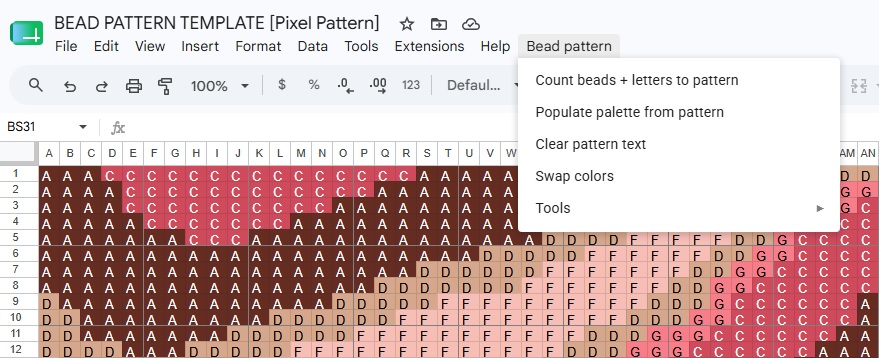
Custom menu dropdown will appear in Google Sheets
Generating custom bead pattern PDFs from a pattern
The next step in the project would be to set up a Metadata sheet, link the patterns there, and write a script that would loop through them and generate custom PDF files for sharing.
I’ll update this article and the repository once it’s completed.
Etsy integration: auto-creating and updating listings
Going forward, I have ideas about streamlining the Etsy listing management using their API.
This would require an integration tool (I use Make.com), but the workflow will be based on the information and links from the Metadata database.
If you need help with automation or integration of your own Etsy, Shopify, or other kind of store, feel free to contact me.
About the author
 Ninel Bolotova, PMP, is a workflow expert setting up and automating processes in ClickUp, Trello, Notion, Monday and other PM tools. She enjoys challenges related to process setup, automation and optimization. Contact Ninel.