

Free Trello Account for Productivity: Workflow & Automation Tips
Productivity means getting more things done, achieving your goals more efficiently and with less stress. Using a task management tool, Trello in particular, is one way to achieve this. There are other ways.
Using a task management tool has to simplify your life and bring focus and clarity, not add anxiety. If the boards get cluttered, it’ll be annoying and overwhelming.
As a workflow expert, I help companies, entrepreneurs and non-profits set up their business processes in Trello, Notion, Monday and other task management tools. In this article, we’ll focus on the practicalities of setting up a Trello board and workflows for productivity and habit building.
photo by @pnw-prod on Pexels
Trello vs. ClickUp vs. Notion free plans for personal use
Project management systems offer free-forever plans Some are more like free trials or have key features locked, while others are more generous. Let’s compare a few popular PM tools.
ClickUp does have a free plan, but the use of custom fields has a hard limit, and only 5 automations could be active at a time.
Both Notion and Trello have their pros:
Notion advantages:
- Single-user accounts have unlimited custom fields, statuses and blocks
- Grouping items on a board by any status
- Connected boards
Trello advantages:
- Robust automation options. You could set up custom reminders to keep you on track.
- Calendar integration requires less permissions and is more convenient to use
- Easy to hide checked-off checklist items
Why I recommend Trello for personal productivity
For more complex workspaces with connected databases and documentation, you could go with Notion. For habit building and personal productivity focus, I recommend the simpler, more streamlined experience that you get with Trello.
Will I need a paid plan to get the most out of Trello?
Free Trello plan would be enough for the essential workflows, so I recommend starting with free plan and free power-ups, get in the swing of using Trello, and then upgrade if you feel it’s beneficial.
What upgrading to a Trello paid plan gives you
Among the rest, Trello Standard plan ($5/mo if billed annually, $6/mo monthly) adds a few key features:
- Custom fields. Fields where you could put additional information about the cards – like text, number or dropdown. Having those structured pieces of information are essential when you use the board as a CRM or a database, but for personal purposes, you could make do with Trello labels for sorting and filtering cards (there are 20+ distinct label colors, and you could also have unlimited non-colored labels) and put the free-format information in a structured way into the card description.
- Advanced checklists. Adds due dates and assignees to checklist items. Checklist due dates and completion times (added with an automation) are one of the most useful features you might want a paid Trello plan for.
- Single-board guests. If a user is added to just one board in a workspace, they’re a single-board guest and don’t need to be charged for – in case you want to collaborate with someone, like having a board for house tasks shared with family members.
Trello Premium plan (costs double the standard plan both annually and monthly) adds features that are more relevant for business environment:
- Additional views, like timeline and maps
- Grouping boards into collections
- Atlassian Intelligence (AI) to help with making the task description more clear and concise and creating action items
Approaching Trello board setup with minimalistic principles
Keep the number of boards, lists and current to-do items to a minimum. Having things on one board initially will reduce distractions and context switching. Have less tasks, but really focus on knocking them out.
Limiting your work in progress ultimately helps with achieving more. Trello is a tool built for Kanban workflow – learn more about the key Kanban metrics.
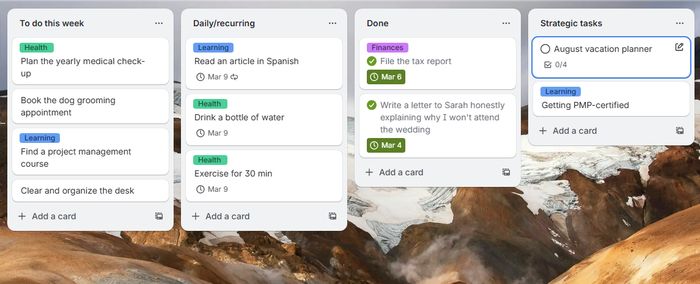
Minimalistic Trello board example
Trello card structure & naming for productivity
Inbox/backlog for storing ideas
Have a backlog column to note ideas you could later draw tasks from. To keep things more organized, you could use one idea theme per card, like “Health”, “Leisure”, “Finances”, and add ideas as items to checklists of those cards.
Keep cards within a list the same “size” – similar level of complexity
Separate those types of tasks into lists:
- A list with bigger, strategic tasks, with a checklist or a few. Smaller to-do items would be derived from them.
- Lists with smaller, tactical tasks that you have on your current agenda. Those to-do cards need to have actionable names, starting with a verb.
Use tags (labels) to categorize tasks
Think of a few you find the most topical, then review and add/remove them as needed. Have up to 2-3 colored tags for key points – there are 30 label colors in Trello, and there could be an unlimited number of gray uncolored labels.
Labels will help you filter and sort tasks. You could see at a glance what type of tasks you do – or need to do – the most.
Related: Key questions to set up workflows in project management tools.
Trello board flow: clear statuses and outcomes
Default Trello view – and the only view available on the free plan – is the Kanban board.
Coming from manufacturing, Kanban was originally meant for processes that go in one direction. Items move from one stage to another until they’re Done.
Real life is more chaotic, and tasks might get stuck, postponed, or go through stages multiple times with feedback loops.
Tips to keep the Trello board clear and up-to-date
- Comment on tasks to note status changes and outcomes.
- Make sure tasks don’t get stale - either complete them or comment to summarize the current state and move back to the backlog.
- Archive the Done tasks regularly.
Trello for Personal: automation sequence for the Done tasks
I suggest adding those automation rules to move the tasks more easily and keep the Done list trimmed. You could still access the Archived cards in Trello from the menu.
For each automation, select the trigger first, then add the action from the “Move cards” tab.
- Automation rule: When a card is marked as Completed, move to the Done list.
- Scheduled automation: Every Sunday at 9 PM, archive all the cards more than 15 days in list.
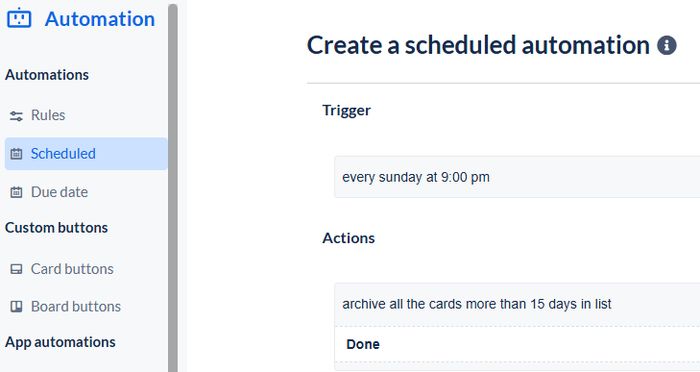
Automatically archive the Done tasks
Building habits with Trello: recurring tasks
You could improve consistency and work on building habits using recurring tasks. There are a few ways to make the tasks recurring in Trello:
Card Repeater power-up
When set up on a card, makes its copy at regular intervals. Quick to set up, best for tasks with frequent cadence, like daily, bi-weekly, or occurring on specific days every week.
See the illustrated instructions on how to create recurring tasks using the Card Repeater power-up, and to update the due dates on those cards using automation.
Scheduled automation to create cards regularly
Set up a scheduled automation to create cards with certain parameters on specific days. This method gives more flexibility with picking the date of recurrence, like “every first Monday of the month”, “every last day of the month”.
Card Repeater power-up and automation rules aren’t visible on the mobile app, so you’ll need to use the Trello desktop version for the initial setup.
Recurring Due Date
Trello introduced this feature in late 2025. Used when setting up the card due date, this option doesn’t copy the card; when the card is marked as complete, it shifts the due date forward based on the rule you select.
If the recurrence rule is “Daily”, it’ll shift the due date to the same time next day. If the rule is “Mon-Fri”, and you complete it on Friday, it’ll shift the due date to next Monday.
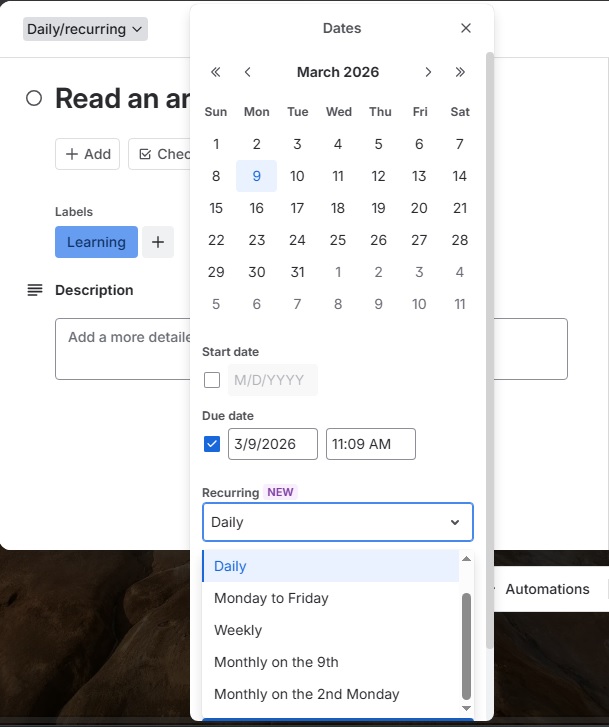
Setting up the recurring Due Date
Warning: using this feature might clash with the automations you might have related to the due date or task completion, so I recommend either using this feature only on the boards where you don’t have such automations, or making sure that automations omit the cards with this feature enabled (those could have a tag that the automation checks for).
Other useful Trello features
Add your calendars to Planner
In the Planner view, you could link your calendar – or multiple calendars. Drag the tasks to the calendar to create events
Have card details visible for context
Make sure to toggle the “show card details” option on, to have a more clear idea of what’s going on with the task – like when it was created, how the due dates changed, or when a checklist item was completed.
Related: Workflow certifications for PM tools.
About the author
 Ninel Bolotova, PMP, is a workflow expert setting up and automating processes in ClickUp, Trello, Notion, Monday and other PM tools. She enjoys challenges related to process setup, automation and optimization. Contact Ninel.